


Google Drive
4.3179.44K Reviews
App Specs
- Version
- Varies with Device
- Updated On
- License
- Free
- Downloads
- 10,000,000,000+
- Developer
- Google LLC
- Categories
- Productivity
- Platform
- Android, iOS
Screenshots
 Analysis by AppCompare
I use Google Drive less as a place to collect files and more as a way to keep the same working material within reach on different devices. That distinction matters: its real strength is not simply storing a document, but making it easier to pick up where I left off, share a useful copy, or find something without remembering exactly where I put it. For everyday personal tasks and shared work, that can remove a surprising amount of small friction.
Keeping files within reach
I find the biggest benefit of keeping files within reach is not just being able to open them elsewhere; it is avoiding the small but costly uncertainty of which copy is current. I’ll look at how a little preparation—especially naming files clearly and choosing what to keep available—makes that convenience more dependable, before considering where it can still fall short.
One library for different devices
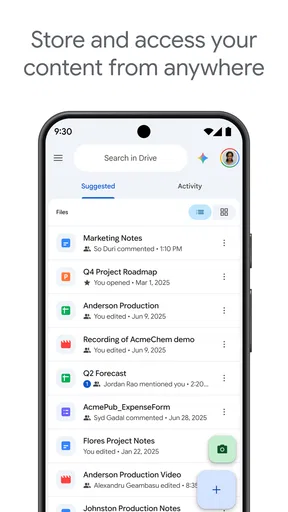
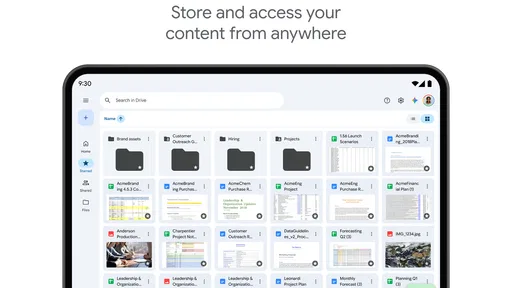
On a phone, tablet, or computer, Drive gives me a central place to reach documents and other files. I find that most useful when I move between devices during the day: I can start a task on one screen and open the same material elsewhere instead of sending it to myself or hunting through message attachments. The app is free to download and use, though purchases are available in the app, with listed items ranging from $0.99 to $1,024.00.
Guides and Analysis on Google Drive
That convenience does depend on keeping the library understandable. I recommend using a small number of clear folders and consistent file names rather than treating the search box as a substitute for organization. A folder structure such as “Current,” “Reference,” and “Archive” can make a crowded Drive easier to scan, while names that include a project or purpose help when several documents look similar. It is a modest habit, but it saves time later.
Sharing without passing files around
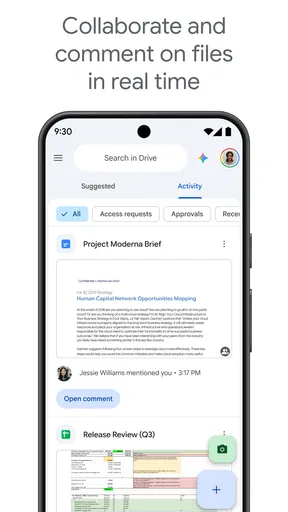
Sharing is where cloud storage becomes more than a personal filing cabinet. Instead of sending a new copy every time a document changes, I can share access to the file and choose whether someone can view, comment, or edit it. That makes a shared document more practical for group planning, feedback, or a project that is still being revised. I still take a moment to check the access setting before sending anything: a link is convenient, but the right audience matters more than the speed of sharing.
For a simple everyday example, imagine coordinating a family trip. I can keep the itinerary and useful documents together, share the relevant material with the people involved, and make a correction without sending another attachment to everyone. It is not a replacement for a conversation, and it does not decide what the group should do; it simply reduces the confusion caused by multiple versions travelling through email or chat.
Works best with Google’s document tools
Drive makes particular sense if I already use Google Docs, Sheets, or Slides. I can keep those working files alongside other material instead of treating each tool as a separate destination. Automatic saving is valuable when I am concentrating on the content rather than remembering to save manually, although I still pay attention to whether I am editing the intended file and account. A shared folder can make a team’s materials easier to reach, but clear names and sensible access choices remain necessary.
Worth Reading Before You Choose

QuizzLand Review: A Good Fit for Short Trivia Breaks, Not Every Player

Basketball Stars: Multiplayer Is Fast, but Can It Recover When Matches Go Wrong?

WEBTOON Turns Phone Updates Into a Better Reading Routine

Link to Windows Runs on Shared Habits, Not Social Feeds

How Alibaba.com Dominates the B2B Marketplace

Metro's Quiet Rise: Redefining Mobile Communication
That ecosystem is also a real trade-off. If most of my collaborators use another office suite, or if I prefer one desktop folder that stays in step with a different cloud service, their familiar setup may be less confusing. Drive is strongest when the people and tools around me can use it comfortably; switching everyone’s habits just to centralize files can create more work than it removes.
Search and offline preparation
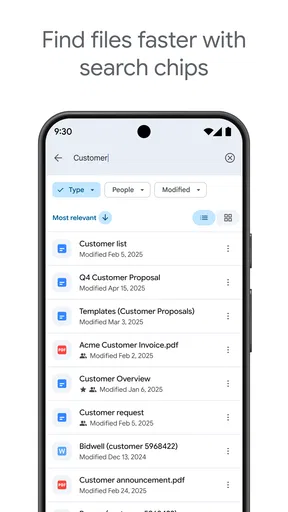
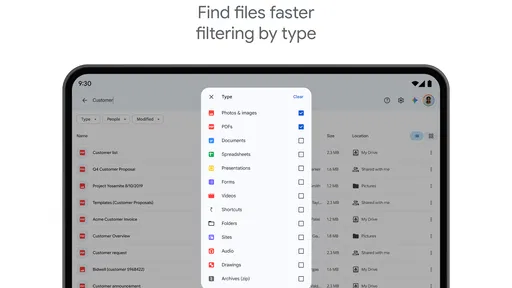
Search helps when I remember what a file contains but not where I filed it. I can narrow the hunt by details such as file type or owner, and searching document contents can be more useful than guessing a folder name. My practical tip is to add a distinctive word to a file’s title when I create it. Search is a helpful backstop, not a reason to leave every document with a vague name or to store unrelated work in one pile.
Offline access is useful when a connection is unreliable, but it rewards planning. Before a commute, appointment, or flight, I would mark the specific files I expect to need rather than assume the entire library will be available without a connection. I would also open those files while still online if the work is important, so I know I have the right material ready. When I reconnect, I can return to the normal connected workflow; for anything time-sensitive, I avoid relying on a last-minute download.
A sensible fit, with limits
Google Drive is a productivity app from Google LLC, and its long-running presence is reflected in its scale: it has an average rating of 4.3 from around 11 million ratings and more than 10 billion installs. It is free, rated for Everyone, and has been available since April 27, 2011. Those figures tell me it is widely used, but they do not guarantee that its way of organizing files will suit every person. I would choose it for everyday access and sharing, not assume that popularity alone makes it the right fit.
It is a good match for students moving between class materials, people who need documents on both a phone and a computer, and small groups that want to work from shared files. It is less appealing if I want a purely local archive, have little interest in cloud-based collaboration, or would rather avoid managing another online library. People handling sensitive work should also think carefully about which account they use and who receives access; convenient sharing does not remove the need for sound judgment.
Compared with keeping attachments in email, Drive is easier to maintain when a file changes because people can work from the same shared item instead of passing around successive copies. Compared with other cloud-storage apps, its clearest advantage is the close fit with Google’s document tools, while another service may be a better choice if my household, school, or workplace already relies on a different ecosystem. I would test the workflow with a few ordinary files before moving a large archive, then decide whether the search, sharing, and cross-device access actually make my routine simpler.
There are a few practical questions I would settle early. First, decide which account should own personal or group files, especially if work and private documents should stay separate. Second, agree on who can edit shared material; giving everyone the same access may be convenient, but it can make accidental changes harder to trace. Third, keep an independent copy of anything whose loss would be especially disruptive. A synced library is handy, but synchronization is not a substitute for a deliberate backup plan.
I also would not treat every item in Drive as a finished document. A useful workflow is to keep drafts in a working folder, move settled material into a reference folder, and archive older projects when they stop being active. This is not elaborate administration; it makes the mobile app more useful because the files I need most are less likely to be buried among old versions and one-off uploads. If a shared project starts accumulating duplicates, agreeing on one current file and a clear naming convention is often more effective than creating yet another folder.
Who gets the most from it
The app is especially worthwhile when access and collaboration matter more than maintaining a meticulously curated local file system. I would recommend trying it if I routinely switch screens, share documents with a few people, or need a dependable place to retrieve working material. Google Drive has a 4.3 average and around 179,000 written reviews, but the useful test is personal: can I find a file quickly, open it where I need it, and share it without creating confusion?
If the answer is yes, its everyday convenience can outweigh the small effort of naming and sorting files. If I mainly want an offline archive, dislike account-based services, or already have a smoother routine in another cloud platform, I would skip the switch. I see Drive as a practical workspace for files that need to travel and be shared, rather than a universal answer to every storage problem.
Ever had one of those moments where you can't find that crucial document right before a meeting? Or maybe you’re tired of emailing files to yourself just to have them on another device? Well, let me introduce you to a lifesaver I’ve been using: Google Drive. This app is like having a digital filing cabinet that you can carry in your pocket. Let’s dive into why it might just become your new best friend.
Seamless Cloud Storage
First off, Google Drive is all about simplicity and accessibility. You get a whopping 15GB of free storage just for signing up, which is perfect for storing documents, photos, and more. And if you need extra space, you can upgrade anytime. The beauty of Drive is that it syncs across all your devices, so whether you’re on your phone, tablet, or computer, your files are just a tap away.
Easy File Sharing
Gone are the days of juggling USB sticks. With Google Drive, sharing files is as easy as pie. Just select a file, hit the share button, and you can send it to anyone via email or a shareable link. You can even set permissions, deciding who can view, comment, or edit your documents. It’s like having a magic wand for collaboration!
Integration with Google Workspace
If you’re already using Gmail or other Google services, integrating Google Drive into your workflow is a no-brainer. It works seamlessly with Google Docs, Sheets, and Slides. That means you can create and edit documents directly in Drive without downloading anything. Plus, it automatically saves as you go, so no more losing work if your device decides to take a nap.
Advanced Search Features
Ever spent ages scrolling through files trying to find that one document? With Google Drive’s advanced search capabilities, those days are over. You can search by file type, owner, or even the content within the document. It's like having a personal assistant who knows where everything is!
Offline Access
Picture this: You’re on a plane with no Wi-Fi but need to work on a document. No problem! Google Drive allows you to access your files offline. Just mark the files you need, and they’re available even when you’re not connected to the internet. It’s perfect for those moments when you’re off the grid but still need to get stuff done.
Security and Privacy
Let’s talk security. Google Drive takes it seriously, with encryption during transfer and storage. You can also enable two-factor authentication for an extra layer of protection. It’s reassuring to know your files are safe, even if you’re a bit of a scatterbrain like me.
In conclusion, Google Drive is like having a trusty sidekick that keeps your digital life organized and accessible from anywhere. Whether you’re a student, a professional, or just someone who likes to stay organized, this app has something for everyone. So why not give it a whirl? You might just wonder how you ever lived without it.
Pros
- Seamless integration with Google services.
- Generous free storage of 15GB.
- Real-time collaboration on documents.
- Cross-platform accessibility.
- Intuitive user interface.
Cons
- Limited offline access options.
- File organization can be confusing.
- Sync issues with large files.
- Privacy concerns with data sharing.
- Requires internet for full functionality.
FAQs for Google Drive
What is Google Drive and how does it work?
Google Drive is a cloud-based storage service that allows users to store files online and access them from any device with an internet connection. It integrates seamlessly with other Google services like Google Docs, Sheets, and Slides, enabling collaborative work and easy sharing of documents and media files.
How much storage do I get with Google Drive?
Google Drive offers 15 GB of free storage shared across Google Drive, Gmail, and Google Photos. If you need more space, Google provides various paid plans through Google One, allowing you to upgrade your storage capacity to 100 GB, 200 GB, or even more, depending on your needs.
Is Google Drive secure for storing sensitive information?
Google Drive uses encryption to protect your files in transit and at rest, making it a secure option for storing data. However, it's essential to use strong passwords and enable two-factor authentication for enhanced security. Be cautious about sharing sensitive files and make use of Drive’s sharing settings to control access.
Can I access Google Drive offline?
Yes, Google Drive offers offline access, allowing you to view and edit files without an internet connection. To enable offline access, you need to set it up in your Drive settings and ensure that your device has the necessary space to store offline copies of your files.
How can I share files or folders with others on Google Drive?
Sharing files or folders on Google Drive is simple. You can share directly from the Drive interface by selecting the item, clicking the share icon, and entering the email addresses of your collaborators. You can choose between view, comment, or edit permissions, and even generate a shareable link for broader distribution.


